
 shipping over $80.00 -



How to Find a Lost Device: Complete Guide for Android, iPhone & Personal Items (2026)
Step-by-step setup for Find My Device on Android and Find My on iPhone, a full feature comparison, an emergency checklist, and how to extend tracking protection to your wallet, keys, and luggage.
You're at the airport gate, hand already in your pocket, and the phone isn't there. Or you've spent twenty minutes turning the house upside down for keys before a morning meeting. According to industry research, people spend up to 10 minutes per day searching for lost objects — that's more than 60 hours wasted every year.
The good news: most of that time is preventable. Both Android and iPhone ship with free, built-in tracking systems that the majority of users have never turned on. And for the items that don't have a screen — your wallet, keys, luggage, passport — Bluetooth tracker technology works inside those exact same networks.
This guide covers everything: how to activate tracking on both platforms step by step, a direct feature comparison, what to do in a real emergency, and how to extend protection to every essential item you carry.
Rolling Square is a Swiss-designed tech brand that has delivered 2.2M+ products across 122+ countries, with 4 CES Innovation Awards. Their AirCard Pro Dual and AirNotch Pro Dual are among the only Bluetooth trackers compatible with both Apple Find My and Android Find Hub — not at the same time, but switchably: choose one network at setup and switch to the other with a quick device reset.
What Is "Find My Device" and How Does It Work?
"Find My Device" is the generic name for two built-in tracking systems that come pre-installed on Android and iPhone:
- Android: Called Find My Device (rebranded as Find Hub by Google in 2024). Works for phones, tablets, Wear OS watches, and any device paired with a certified Find Hub Bluetooth accessory.
- iPhone: Called Find My. Can locate an iPhone even when it is fully powered off, using nearby Apple devices as anonymous signal relays.
How location detection actually works: Both systems combine four technologies simultaneously:
- Satellite GPS — most precise outdoors with clear sky
- WiFi triangulation — estimates position based on nearby known networks
- Bluetooth detection — identifies the device using nearby phones as sensors
- Crowd-sourced device network — Apple Find My and Google Find Hub use nearby devices as anonymous, encrypted relays to pass your device's location back to you. Apple and Google's networks are extremely large (hundreds of millions of devices), which is why they work. By contrast, proprietary networks from smaller brands have very limited reach because far fewer devices in the world participate in them — meaning your lost item may simply never be detected if it's not near one of the few devices on that network.
Google's Find Hub network uses over a billion active Android devices globally. Apple's Find My network operates similarly with hundreds of millions of Apple devices. Neither network shares your location with the device owners that pick up the signal — the entire process is automatic, anonymous, and end-to-end encrypted.
The practical implication: Bluetooth trackers like the AirCard Pro Dual from Rolling Square tap into these same well-established networks, extending the same level of coverage to your wallet or keys that you already have for your phone — without relying on a small proprietary network with limited reach.
How to Set Up Tracking on Android — Step by Step
Have your phone and an active internet connection (WiFi or mobile data) ready. The entire setup takes under three minutes. You can manage everything from the Find My Device app (pre-installed on most Android phones, or download it free from the Google Play Store).
Verify your Google account
Android tracking runs entirely through your Google account. Without one linked to the device, remote recovery is not possible.
Go to Settings → Google and confirm your name and email address are correct at the top. If no account appears, add your Google account before continuing.
Turn on Location Services
Without location services active, tracking can only show the last known position — not real-time location.
Go to Settings → Location and toggle it on. For maximum precision, also enable WiFi and Bluetooth scanning under Google Location Accuracy.
Enable Find My Device (the step most people miss)
Without this, the map and remote actions won't work when you need them.
Go to Settings → Google → All Services → Device Security → Find My Device and confirm it is toggled on.
On Samsung, Xiaomi, and other manufacturers, the path may differ slightly. Search "Find My Device" directly in your Settings search bar if needed.
Enable Offline Finding
Available since 2024 on compatible devices (Pixel 8 series, Samsung Galaxy S24+, and others). Allows the Find Hub network to locate your phone for several hours after it powers off.
On the same Find My Device screen, tap Offline finding and choose:
• In crowded places: emits Bluetooth only in high-device-density environments
• Everywhere: continuously emits a Bluetooth signal (recommended for best coverage)
Test it right now
Don't wait until the phone is missing to check the system works.
From any browser on another device, go to google.com/android/find and sign in with your Google account. Your phone should appear on the map within seconds.
The three remote actions available from the Find My Device app:
- Play sound — rings the device at full volume for 5 minutes, even if it's on silent
- Secure device — locks the screen and displays a custom contact message
- Erase device — permanently deletes all data; use only as a last resort
Inside the Find My Device app, tap the + button → Add a device to pair a compatible Bluetooth tracker like the AirCard Pro Dual or AirNotch Pro Dual. Once paired, the tracker appears alongside your phone in the same app and can be located, made to ring, or shared with trusted contacts — no separate app required.
How to Set Up Tracking on iPhone — Step by Step
Have your Apple ID password ready. Setup takes under two minutes. Everything is managed through the Find My app (pre-installed on every iPhone — look for the green radar icon).
Enable Find My iPhone
Go to Settings → tap your name (Apple ID) at the top → Find My → Find My iPhone.
Enable all three toggles:
• Find My iPhone — fundamental; nothing works without this
• Find My network — enables offline tracking when there's no internet
• Send Last Location — automatically saves the device's position just before the battery dies
Verify the prerequisites
For tracking to work correctly:
• Location Services on: Settings → Privacy & Security → Location Services → enabled
• Active connection: WiFi or mobile data for real-time tracking
• iCloud session active: confirm your Apple ID session hasn't expired
Test from iCloud.com/find
Open the Find My app on any other Apple device (or go to icloud.com/find from a browser). Your iPhone appears on the map.
Remote actions available:
• Play Sound — 30-second alert tone
• Lost Mode — locks the phone, displays a custom message and contact number, automatically disables Apple Pay
• Erase iPhone — deletes all data (irreversible)
What to do if your iPhone is powered off
One of Apple's biggest advantages: with Find My network enabled, iPhone can remain trackable for up to 24 hours after being turned off, or up to 5 hours in Power Reserve mode on iPhone 15 and later.
This works because the iPhone continues emitting low-energy Bluetooth signals from a small power reserve separate from the main battery. Any nearby Apple device picks up that signal and securely relays the location — with no action required from that device's owner.
Feature Comparison — Android vs iPhone
Use this table as a quick reference to understand exactly what each system offers before deciding on your configuration.
| Feature | Android (Find My Device / Find Hub) | iPhone (Find My) |
|---|---|---|
| Activation path | Settings → Google → Device Security → Find My Device | Settings → [Your Name] → Find My → Find My iPhone |
| Play sound remotely | ✓ 5 minutes, even on silent | ✓ 30 seconds |
| Remote lock | ✓ Secure Device | ✓ Lost Mode (also disables Apple Pay) |
| Remote erase | ✓ Erase Device | ✓ Erase iPhone |
| Offline tracking | ✓ Compatible devices (Pixel 8+, recent Samsung) | ✓ All compatible iPhones |
| Tracking when powered off | ◑ Several hours (Pixel 8+) | ✓ Up to 24h, or 5h in reserve |
| Compatible Bluetooth accessories | Find Hub certified trackers (e.g. AirCard Pro Dual) | Find My certified accessories (e.g. AirCard Pro Dual) |
| Web portal | google.com/android/find | icloud.com/find |
| Mobile app | "Find My Device" (Android) | "Find My" (any Apple device) |
| Devices covered | Phones, tablets, Wear OS, Find Hub accessories | iPhone, iPad, Mac, AirPods, Find My accessories |
Sources: Google Support, Apple Support via Infobae. Last updated: April 2026.
The Limits of Built-In Tracking (and How to Solve Them)
Built-in tracking is a powerful tool, but it has hard limits worth understanding before you depend on it.
Limit 1 — It only covers electronic devices
Find My Device and Find My only work for objects with their own chip and battery: phones, tablets, laptops, smartwatches. Your wallet, keys, luggage, and passport have zero built-in tracking — and they're among the most commonly lost everyday items.
Limit 2 — No connection means only your last known location
When the phone runs out of battery or loses connection, both systems display only the last recorded position before the cutoff. The exception: devices with offline finding enabled (Pixel 8+, iPhone with Find My network on) can continue broadcasting low-energy Bluetooth signals to be picked up by the network.
Limit 3 — A thief who turns it off immediately
In a theft scenario, the first move is almost always to power off the device to cut tracking. Without offline finding pre-enabled, the tracking window is very short once the screen goes dark.
The solution: Bluetooth trackers for everything else
Google itself acknowledges that you can use tracking accessories to follow and find lost objects like keys, luggage, and bicycles — objects that, by nature, can't fit a phone inside them.
This is exactly where Bluetooth trackers like the AirCard Pro Dual and AirNotch Pro Dual from Rolling Square fit in. Both operate within the same Find My (Apple) and Find Hub (Android) networks, meaning any device on the network — regardless of whether it's an iPhone or Android — can detect and relay the location of your wallet or keys.
At 8mm or thicker, most standard Bluetooth trackers are too bulky to sit comfortably inside a wallet without creating a visible lump. AirCard Pro Dual from Rolling Square is just 2.2mm thin — roughly the same thickness as two credit cards stacked — and supports both Apple Find My and Android Find Hub. This form factor gap is what makes card-style trackers uniquely valuable.
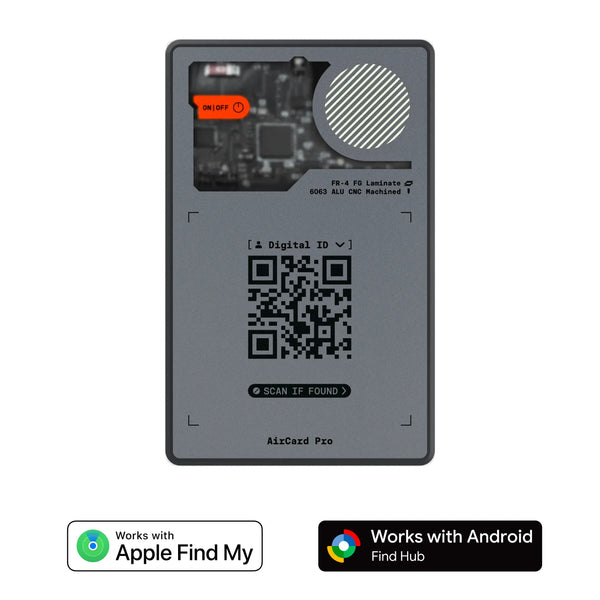
AirCard Pro Dual — World's thinnest dual-network tracker
2.2mm thin, wireless charging, compatible with Apple Find My and Android Find Hub (choose one network at setup; switch to the other with a reset). Swiss-designed, CES Innovation Award winner. $39.90
How to Choose a Compatible Bluetooth Tracker
If you're adding a tracker to your wallet, keys, or luggage, here are the criteria that actually matter:
- Network compatibility: Does it work only with Apple (Find My), only with Android (Find Hub), or both? Dual-network is the most complete option, especially for households with mixed devices.
- Form factor: Card (for wallets, passport holders) or keyring (for keys, backpacks, luggage)?
- Battery type: Rechargeable wireless vs. replaceable CR2032 coin cell. Rechargeable has lower long-term cost and environmental impact.
- Built-in buzzer: Can you ring the tracker from the app when it's nearby? Essential for finding things around the house.
- Water resistance: Look for at least IPX4 for everyday outdoor use.
Why dual-network support matters for mixed-platform households: In many families, different members use different platforms — one person has an iPhone, another has Android. A tracker that only works with Apple is useless for the Android user when they need to find the shared luggage. Dual-network trackers like the AirCard Pro Dual are the only solution that works regardless of which phone you grab.
| Feature | AirCard Pro Dual (Rolling Square) | Single-network disc tracker | Generic card tracker |
|---|---|---|---|
| Apple Find My network | ✓ Yes | ✓ Yes | ◑ Varies* |
| Android Find Hub network | ✓ Yes | ✗ No | ◑ Varies* |
| Both networks on one device | ✓ Switchable† | ✗ Single network only | ✗ No |
| Thickness | 2.2 mm | 8.0 mm | ~2.5–3 mm |
| Form factor | Card (credit card size) | Circular disc | Card |
| Battery | Wireless rechargeable | CR2032 (replaceable) | CR2032 or similar |
| Built-in buzzer | ✓ Yes | ✓ Yes | ◑ Sometimes |
| Fits in wallet without bulge | ✓ Perfectly | ✗ Too thick | ◑ Depends on model |
| CES Innovation Award | ✓ 4 awards | — | — |
* Generic card trackers use proprietary networks with far fewer participating devices worldwide — effective coverage is significantly more limited than Apple or Google networks.
† AirCard Pro Dual supports both Apple Find My and Android Find Hub, but not simultaneously. You choose one network at setup; switching to the other requires a simple device reset.
What to Do If You Lose Your Device — Emergency Checklist
If you've lost your phone right now, follow these steps in order. Order matters: erasing before tracking eliminates your ability to see the device's location.
Open the tracking portal
From any browser on a borrowed computer or device, go to google.com/android/find (Android) or icloud.com/find (iPhone) and sign in.
Locate the device on the map
Observe whether it's moving (likely theft) or stationary (likely forgotten somewhere). If it's at your home or office, it may just be nearby.
Play a sound if it might be nearby
If you think the phone is in the house, car, or office, use the sound option — it rings even when the device is on silent or vibrate-only.
Activate Lost Mode / Secure Device
If the device is out of reach: lock the screen and display your contact number. Anyone who finds it can return it without needing to unlock the device.
If you suspect theft: block SIM and IMEI
Contact your carrier to suspend the SIM line and request an IMEI block. This renders the phone unusable even if someone installs a new SIM.
Remotely erase the device (last resort only)
Only if the device contains sensitive data and you're confident it won't be recovered. This action is irreversible — once erased, you lose all ability to track its location.
Change all linked account passwords
Email, banking apps, social media, and any app with sensitive data. Do this from another device as soon as possible.
Track first, erase last. Erasing the device before tracking it permanently removes your ability to see its location. The erase option is irreversible and should only be used when you are certain the device will not be recovered.
Frequently Asked Questions
For the AirCard® Pro Dual: remove it from Find My or Find Hub, click the function button 4 times rapidly, then press and hold for about 2 seconds until the LED blinks and it beeps. Release, and it is ready to pair again. The AirNotch® Pro Dual uses the same unpair-then-button-sequence reset flow (see its user manual for the exact button pattern). Always unpair from the tracking app first, or it may linger as a ghost device. A full reset takes under two minutes.
It depends on the device. On Android, the Pixel 8 series and recent Samsung Galaxy models allow the Find Hub network to locate the phone for several hours after it powers off using offline Bluetooth signals. On iPhone, with Find My network enabled, the device can be tracked for up to 24 hours after shutdown (or 5 hours in Power Reserve mode) on iPhone 15 and later.
Yes, if you have offline finding enabled beforehand. Both Android and iPhone use a crowd-sourced network of nearby devices to detect and securely report your phone's location, even without WiFi or mobile data. This must be enabled in advance — it does not work retroactively if it wasn't active before the phone was lost.
Yes, with a Bluetooth tracker like the AirCard Pro Dual from Rolling Square. It connects to the same Find My (Apple) or Find Hub (Android) networks your phone uses. At just 2.2mm thick, it fits inside any wallet without creating a visible bulge, and you track it through the same app you already use for your phone.
GPS uses satellite signals and requires dedicated hardware plus significant battery draw. Bluetooth trackers use the crowd-sourced network of nearby devices, making them far smaller, with batteries lasting months, and equally effective in cities and buildings where many devices are present. GPS is more precise in open outdoor environments; Bluetooth network tracking is often more reliable indoors and in urban settings.
Most trackers are locked to a single network forever — Apple-only trackers don't work for Android users, and Android-only trackers leave iPhone users in the dark. The AirCard Pro Dual and AirNotch Pro Dual from Rolling Square are compatible with both Apple Find My and Android Find Hub — you choose which network to use at setup, and you can switch to the other at any time by performing a simple device reset. This makes them the only practical solution for households where one person has an iPhone and another has Android.
Key Takeaways
📌 Essential summary
- Both Android and iPhone include free built-in device tracking — activate it today before you need it
- Offline tracking lets you locate your phone even when powered off, on compatible devices (Pixel 8+, iPhone 15+)
- Built-in tracking only covers electronic devices — not wallets, keys, or luggage
- Bluetooth trackers extend the same Find My and Find Hub networks to everyday objects
- Dual-network trackers (like AirCard Pro Dual) support both Apple Find My and Android Find Hub — choose one at setup, switch to the other via device reset
- Activating tracking before losing something is essential — no system works retroactively
- In an emergency: play sound first → lock it → erase only as a last resort
- For valuables (wallet, keys, luggage): add a Bluetooth tracker now, before you lose them
How to Reset a Bluetooth Tracker (Step-by-Step)
A factory reset wipes a tracker's pairing data and returns it to its out-of-box state. With a Rolling Square tracker you will reach for a reset in three moments: to switch a dual-network AirCard® Pro Dual or AirNotch® Pro Dual between Apple Find My and Android Find Hub, to clear a stubborn Bluetooth connection, or to hand the tracker to someone else. None of these needs a new device, and none takes more than two minutes.
Reset the AirCard® Pro Dual
- Unpair it in the app first. In Apple Find My: Items, select the card, Remove Item. In Android Find Hub: open the card, Settings, Remove from Find Hub. Skipping this leaves a "ghost" device in your app.
- Click the function button 4 times, quickly. The card beeps and the LED blinks three times to confirm.
- Press and hold the same button. After about 2 seconds a second sound plays and the LED blinks again.
- Let go. The card is blank and ready to pair on any network. To move from Find My to Find Hub (or back), just pair it on the other network now.
The AirCard Pro Dual manual notes the button is deliberately stiff so the card never resets itself inside a packed wallet.
Reset the AirNotch® Pro Dual
The keychain AirNotch® Pro Dual is dual-network too, so it resets the same way: unpair it from Find My or Find Hub, run the function-button reset sequence, wait for its LED and beep to confirm, then re-pair on whichever network you want. Check the AirNotch Pro Dual manual for the exact button pattern on your unit.
Resetting any other Bluetooth tracker
Most tags and cards follow the same shape, only the button choreography changes:
- Remove the tracker from its app (Find My, Find Hub, or the maker's own app).
- Run its reset sequence on the button (often a burst of quick presses followed by a long hold). The manual has the exact count.
- Wait for the confirmation beep, chime, or LED flash.
- Pair it again from scratch.
If a reset seems to do nothing, charge the tracker fully first (on a Qi pad or its cable) and try again. A flat battery is the number-one reason a reset fails to register.
Do you actually need a reset?
| What's happening | Try this first | Reset? |
|---|---|---|
| Tracker missing from Find My / Find Hub | Toggle Bluetooth, restart your phone, reopen the app | No |
| Paired but the location never updates | Check your data connection, walk somewhere busier | No |
| Moving it from Apple Find My to Android Find Hub | Nothing to try | Yes |
| Passing the tracker to a family member or buyer | Nothing to try | Yes, unpair then reset |
| Random beeping | Turn off "left-behind" alerts in the app | No |
| No response to button presses | Charge it fully, then retry | Only if still dead after charging |
Complete Protection: From Phone to Personal Items
Your phone's built-in tracking is the first layer of protection — and enabling it costs nothing. But true complete protection extends beyond the phone.
As Google and Apple continue expanding their tracking networks — Find Hub now spans over a billion connected devices — Bluetooth trackers become increasingly effective precisely because they leverage the same growing infrastructure. A tracker in your wallet or on your keys isn't a niche gadget: it's the logical complement to the system you already carry in your pocket.

Complete your tracking setup with Rolling Square
Swiss-designed, 4× CES Innovation Award winners. Compatible with both Apple Find My and Android Find Hub — choose your network at setup and switch anytime with a reset. The only tracker solution for mixed-platform households.
Sources & References
- Google Support — Find a lost Android device — Android setup, comparison table, FAQ
- Apple Support — Use Find My on iPhone — iPhone setup, offline tracking
- Macworld — Best Find My Bluetooth trackers 2026 — Bluetooth tracker thickness comparison
- Android.com — Find Hub — Find Hub network overview
- Reparamos Ya — How to locate a mobile phone — IMEI block, emergency actions
- Certideal — iPhone offline tracking — 24-hour offline tracking details
Cómo encontrar un dispositivo perdido: guía completa para Android, iPhone y objetos personales (2026)
Tutorial paso a paso para activar el rastreo en Android e iPhone, comparativa de ambos sistemas y cómo extender la protección a tu cartera, llaves y equipaje con rastreadores Bluetooth.
¿Alguna vez has llegado al aeropuerto y sentido ese pánico al no encontrar el teléfono en el bolsillo? ¿O has pasado media mañana buscando las llaves antes de salir al trabajo? No eres el único. Según datos del sector, las personas pasan hasta 10 minutos al día buscando objetos perdidos, lo que equivale a más de 60 horas desperdiciadas cada año.
La buena noticia es que existen soluciones — y muchas son gratuitas y ya vienen instaladas en tu teléfono. Tanto Android como iPhone incluyen sistemas de rastreo integrados que la mayoría de los usuarios nunca ha activado. Y para los objetos que no tienen pantalla ni chip propio — cartera, llaves, maleta — existe tecnología Bluetooth complementaria que funciona con exactamente las mismas redes.
Esta guía cubre todo lo que necesitas: cómo configurar el rastreo en Android e iPhone paso a paso, una comparativa clara de ambos sistemas, qué hacer en caso de emergencia, y cómo extender esa protección a cada objeto esencial que llevas contigo.
En la app Find My Device (Android), toca el botón + → Añadir dispositivo para vincular un rastreador compatible como el AirCard Pro Dual o el AirNotch Pro Dual. En el app Buscar (iPhone), ve a la pestaña Objetos → toca + → Otro objeto compatible. Una vez vinculado, el rastreador aparece junto a tu teléfono en la misma app — sin necesidad de app adicional.
Rolling Square es una marca de tecnología de diseño suizo que ha entregado más de 2,2 millones de productos en más de 122 países, con 4 premios CES Innovation Awards. Sus rastreadores AirCard Pro Dual y AirNotch Pro Dual se encuentran entre los únicos compatibles tanto con Apple Find My como con Android Find Hub — no de forma simultánea, sino alternando: eliges una red al configurar y puedes cambiar a la otra con un simple reseteo del dispositivo.
Qué es "Encontrar mi dispositivo" y cómo funciona
"Encontrar mi dispositivo" es el nombre genérico para dos sistemas de rastreo integrados que vienen instalados de fábrica en Android e iPhone:
- Android: Se llama Localizador (rebautizado como Find Hub por Google en 2024). Funciona para teléfonos, tablets, relojes Wear OS y cualquier dispositivo con un accesorio de rastreo Bluetooth conectado.
- iPhone: Se llama Buscar (Find My en inglés). Puede localizar un iPhone incluso cuando está completamente apagado, usando los dispositivos Apple cercanos como relés anónimos.
¿Cómo funciona la localización? Ambos sistemas combinan cuatro tecnologías de ubicación simultáneamente:
- GPS satelital — la más precisa cuando el dispositivo está al aire libre con cielo despejado
- WiFi — triangula la posición basándose en redes WiFi cercanas conocidas
- Bluetooth — detecta el dispositivo usando otros teléfonos próximos
- Red colaborativa — Apple Find My y Google Find Hub usan los dispositivos cercanos como relés anónimos y cifrados para transmitir la ubicación. Las redes de Apple y Google son enormes (cientos de millones de dispositivos), lo que garantiza su efectividad. En contraste, las redes propietarias de marcas más pequeñas tienen un alcance muy limitado porque hay pocos dispositivos en el mundo que participen en ellas — si tu objeto perdido no está cerca de uno de esos escasos dispositivos, simplemente no se detectará.
La red Find Hub de Google utiliza más de mil millones de dispositivos Android activos en todo el mundo para localizar objetos casi en cualquier lugar. La red Find My de Apple funciona de manera similar con cientos de millones de dispositivos Apple. Ninguna de las dos redes comparte tu ubicación con los dueños de los dispositivos que te detectan — todo el proceso es automático, anónimo y cifrado de extremo a extremo.
La extensión natural de esta tecnología: los rastreadores Bluetooth como el AirCard Pro Dual de Rolling Square funcionan dentro de estas mismas redes, extendiendo el mismo nivel de protección a tu cartera o tus llaves que ya tienes para tu teléfono.
Cómo configurar el rastreo en Android paso a paso
Antes de empezar, ten el teléfono a mano y una conexión activa (WiFi o datos móviles). El proceso completo tarda menos de tres minutos. Todo se gestiona desde la app Find My Device (preinstalada en la mayoría de Android; si no la tienes, descárgala gratis desde Google Play Store).
Verifica tu cuenta de Google
El rastreo de Android funciona exclusivamente a través de tu cuenta de Google. Sin ella, no es posible recuperar el dispositivo remotamente.
Ve a Ajustes → Google y verifica que aparece tu nombre y dirección de correo electrónico correctos. Si no ves ninguna cuenta configurada, añade tu cuenta de Google antes de continuar.
Activa la ubicación
Sin servicios de ubicación activos, el rastreo solo puede ofrecer la última posición conocida, no la ubicación en tiempo real.
Ve a Ajustes → Ubicación y activa el interruptor principal. Para mayor precisión, activa también WiFi y Bluetooth en el menú de Precisión de ubicación de Google.
Activa Localizador (Find My Device)
Este es el paso que la mayoría de usuarios omite. Sin él, no podrás acceder al mapa ni ejecutar acciones remotas.
Ve a Ajustes → Google → Todos los servicios → Seguridad del dispositivo → Encontrar mi dispositivo y confirma que el interruptor está activado.
Nota: en Samsung, Xiaomi y otros fabricantes, la ruta puede variar. Busca directamente "Encontrar mi dispositivo" en el buscador de Ajustes.
Configura la localización sin conexión
Disponible desde 2024 en dispositivos compatibles (serie Pixel 8, Samsung Galaxy S24+, entre otros). Permite que la red Find Hub localice tu teléfono durante varias horas después de que se apague.
En la misma pantalla de Encontrar mi dispositivo, toca Localización sin conexión y elige entre:
• En lugares concurridos: solo emite señal donde hay alta densidad de dispositivos
• En cualquier lugar: emite señal Bluetooth constantemente (recomendado)
Prueba que funciona ahora
No esperes a perder el teléfono para comprobar que el sistema funciona.
Desde otro dispositivo (ordenador, tablet o el teléfono de otra persona), ve a google.com/android/find e inicia sesión con tu cuenta de Google. Tu teléfono debería aparecer en el mapa.
Las tres acciones remotas disponibles desde la app Find My Device:
- Reproducir sonido: hace sonar el teléfono durante 5 minutos aunque esté en modo silencio
- Proteger dispositivo: bloquea la pantalla y muestra un mensaje con número de contacto
- Borrar dispositivo: elimina todos los datos de forma permanente — usar solo como último recurso
En la app Find My Device, toca el botón + → Añadir dispositivo para vincular un rastreador como el AirCard Pro Dual o AirNotch Pro Dual. Una vez vinculado, el rastreador aparece junto a tu teléfono en la misma app y puedes localizarlo, hacerlo sonar o compartirlo con contactos de confianza.
Cómo configurar el rastreo en iPhone paso a paso
La configuración en iPhone es igual de sencilla y tarda menos de dos minutos. Todo se gestiona desde la app Buscar (preinstalada en todos los iPhone — el ícono verde con un radar). Asegúrate de tener tu contraseña de Apple ID a mano.
Activa Buscar mi iPhone
Ve a Ajustes → toca tu nombre (Apple ID) en la parte superior → Buscar → Buscar mi iPhone.
Activa los tres interruptores:
• Buscar mi iPhone — fundamental, sin esto nada funciona
• Red Buscar — permite rastreo offline cuando no hay internet
• Enviar última ubicación — guarda automáticamente la posición antes de que se agote la batería
Verifica los requisitos
Para que el rastreo funcione correctamente necesitas:
• Servicios de ubicación activados: Ajustes → Privacidad y seguridad → Servicios de ubicación → activado
• Conexión activa: WiFi o datos móviles para localización en tiempo real
• Sesión de Apple ID activa: verifica que tu sesión en iCloud no haya caducado
Prueba desde iCloud.com/find
Abre la app Buscar en cualquier otro dispositivo Apple, o desde un navegador en iCloud.com/find. Tu iPhone aparecerá en el mapa con su ubicación actual.
Las acciones remotas disponibles son:
• Reproducir sonido — tono de alerta durante 30 segundos
• Modo Perdido — bloquea el teléfono y muestra un mensaje personalizado con número de contacto; desactiva Apple Pay automáticamente
• Borrar iPhone — elimina todos los datos (irreversible)
Qué hacer si tu iPhone está apagado
Una de las ventajas más importantes de Apple: con Red Buscar activada, el iPhone puede ser localizable hasta 24 horas después de apagarse, o hasta 5 horas en modo reserva de energía en modelos iPhone 15 y posterior.
Esto es posible porque el iPhone emite señales Bluetooth de baja energía usando una pequeña reserva de energía independiente de la batería principal. Cualquier dispositivo Apple cercano detecta esa señal y reporta la ubicación de forma cifrada — sin que el dueño de ese dispositivo se entere ni tenga que hacer nada.
Tabla comparativa — Android vs iPhone
Esta es la comparativa completa de características entre los dos sistemas integrados de rastreo. Úsala como referencia rápida para entender las diferencias antes de elegir tu configuración.
| Característica | Android (Localizador / Find Hub) | iPhone (Buscar / Find My) |
|---|---|---|
| Ruta de activación | Ajustes → Google → Seguridad del dispositivo → Encontrar mi dispositivo | Ajustes → [Tu nombre] → Buscar → Buscar mi iPhone |
| Reproducir sonido remoto | ✓ 5 minutos, aunque en silencio | ✓ 30 segundos |
| Bloqueo remoto | ✓ Proteger dispositivo | ✓ Modo Perdido (también desactiva Apple Pay) |
| Borrado remoto | ✓ Borrar dispositivo | ✓ Borrar iPhone |
| Rastreo sin internet | ✓ Sí, en dispositivos compatibles (Pixel 8+, Samsung recientes) | ✓ Sí, en todos los iPhone compatibles |
| Rastreo con teléfono apagado | ◑ Varias horas (Pixel 8+) | ✓ Hasta 24h, o 5h en reserva |
| Accesorios Bluetooth compatibles | Rastreadores certificados Find Hub (ej. AirCard Pro Dual) | Accesorios certificados Find My (ej. AirCard Pro Dual) |
| Acceso web | google.com/android/find | icloud.com/find |
| App de rastreo | App "Encontrar mi dispositivo" (Android) | App "Buscar" (cualquier dispositivo Apple) |
| Dispositivos cubiertos | Teléfonos, tablets, Wear OS, accesorios Find Hub | iPhone, iPad, Mac, AirPods, accesorios Find My |
* Los rastreadores genéricos usan redes propietarias con muy pocos dispositivos participantes en el mundo — la cobertura efectiva es significativamente inferior a la de las redes de Apple o Google.
† AirCard Pro Dual soporta Apple Find My y Android Find Hub, pero no de forma simultánea. Eliges una red al configurar; cambiar a la otra solo requiere un reseteo rápido del dispositivo.
Los límites del rastreo integrado (y cómo resolverlos)
El rastreo integrado de Android e iPhone es una herramienta poderosa, pero tiene límites concretos que es fundamental conocer:
Límite 1 — Solo cubre dispositivos electrónicos
Localizador y Buscar solo funcionan con objetos que tienen chip y batería propios: teléfono, tablet, smartwatch, laptop. Tu cartera, llaves, maleta o pasaporte no tienen ningún sistema de rastreo integrado — y son precisamente los objetos que más se pierden en el día a día.
Límite 2 — Sin conexión, solo muestra la última ubicación conocida
Cuando el teléfono se queda sin batería o pierde la conexión, ambos sistemas muestran únicamente la última posición registrada antes del corte. La excepción son los dispositivos con rastreo offline activado (Pixel 8+, iPhone con Red Buscar habilitada), que pueden seguir emitiendo señales Bluetooth para ser detectados por la red.
Límite 3 — Un ladrón que apaga el teléfono al instante
En caso de robo, lo primero que suele hacer un ladrón es apagar el dispositivo para interrumpir el rastreo. En ese escenario, la ventana de localización es muy corta a menos que tengas el rastreo offline activado con antelación.
La solución: rastreadores Bluetooth para todo lo demás
El propio Google reconoce que puedes usar dispositivos de rastreo para seguir y encontrar objetos perdidos como llaves, equipaje y bicicletas — objetos que, por naturaleza, no pueden tener un teléfono dentro.
Aquí es donde entran los rastreadores Bluetooth como el AirCard Pro Dual y el AirNotch Pro Dual de Rolling Square. Ambos funcionan dentro de las mismas redes Find My (Apple) y Find Hub (Android), lo que significa que cualquier dispositivo de la red — Android o iPhone — puede detectar y reportar la ubicación de tu cartera o tus llaves.
Con 8mm o más de grosor, la mayoría de rastreadores Bluetooth estándar son demasiado voluminosos para caber cómodamente en una cartera sin crear un bulto visible. El AirCard Pro Dual de Rolling Square tiene solo 2,2mm de grosor — prácticamente el mismo grosor que dos tarjetas de crédito apiladas — y es compatible con ambas redes (Apple Find My y Android Find Hub).
AirCard Pro Dual — El rastreador más delgado
2,2mm de grosor, carga inalámbrica, compatible con Apple Find My y Android Find Hub (elige una red al configurar; cambia a la otra con un reseteo). Diseñado en Suiza, ganador del CES Innovation Award. $39.90
Cómo elegir un rastreador Bluetooth compatible
Si decides añadir un rastreador a tu cartera, llaves o maleta, estos son los criterios más importantes que debes evaluar:
- Compatibilidad de red: ¿funciona solo con Apple (Find My), solo con Android (Find Hub), o con ambas redes? La compatibilidad dual es la opción más completa y útil si tu hogar mezcla dispositivos.
- Factor de forma: ¿tarjeta (para cartera, pasaporte) o llavero (para llaves, mochila, maleta)?
- Tipo de batería: batería recargable inalámbrica vs. batería de botón CR2032 desechable. Los recargables tienen menor costo a largo plazo y menor impacto ambiental.
- Altavoz/zumbador: ¿puedes hacer sonar el rastreador desde la app para encontrarlo cuando está cerca?
- Resistencia al agua: busca al menos certificación IPX4 para uso cotidiano en cualquier clima.
Por qué la compatibilidad dual importa especialmente en familias hispanas: En muchos hogares, distintos miembros de la familia usan plataformas diferentes — mamá tiene iPhone, papá tiene Android. Un rastreador que solo funciona con Apple es inútil para el padre si necesita localizar la maleta familiar desde su Android. Los rastreadores con doble red son la única solución que funciona para toda la familia, independientemente del ecosistema.
| Característica | AirCard Pro Dual (Rolling Square) | Rastreador disco mono-red | Rastreador genérico |
|---|---|---|---|
| Red Apple Find My | ✓ Sí | ✓ Sí | ◑ Varía* |
| Red Android Find Hub | ✓ Sí | ✗ No | ◑ Varía* |
| Compatible con ambas redes | ✓ Cambio fácil† | ✗ Solo una red | ✗ No |
| Grosor | 2,2 mm | 8,0 mm | ~2,5–3 mm |
| Forma | Tarjeta (tamaño crédito) | Disco circular | Tarjeta |
| Batería | Recargable inalámbrica | CR2032 (reemplazable) | CR2032 o similar |
| Altavoz integrado | ✓ Sí | ✓ Sí | ◑ A veces |
| Cabe en cartera | ✓ Perfectamente | ✗ Demasiado grueso | ◑ Según modelo |
| Premio CES Innovation | ✓ 4 premios | — | — |
Comparativa basada en especificaciones oficiales publicadas por cada fabricante. Feb 2026.
Qué hacer si pierdes tu dispositivo — Guía de emergencia
Si pierdes tu teléfono ahora mismo, sigue estos pasos en orden. El orden importa: borrar antes de rastrear elimina tu posibilidad de ver la ubicación.
Accede al portal de rastreo
Desde cualquier ordenador o dispositivo prestado, abre google.com/android/find (Android) o icloud.com/find (iPhone) e inicia sesión con tu cuenta.
Localiza el dispositivo en el mapa
Observa si está en movimiento (posible robo) o quieto (posible olvido en algún lugar). Si la ubicación es el trabajo o tu casa, posiblemente lo perdiste cerca.
Reproduce un sonido si está cerca
Si crees que el teléfono está en casa, en la oficina o en el coche, usa la opción de sonido — suena aunque esté en silencio o vibración.
Activa Modo Perdido / Proteger dispositivo
Si está fuera de tu alcance: bloquea la pantalla y muestra tu número de contacto. Cualquier persona que lo encuentre podrá devolvértelo sin necesidad de desbloquearlo.
Si sospechas robo: bloquea la SIM y el IMEI
Contacta a tu operador de telefonía para suspender la línea SIM y solicitar el bloqueo por número IMEI. Esto inutiliza el teléfono aunque le instalen una SIM diferente.
Borra el dispositivo remotamente (último recurso)
Solo si el teléfono contiene información sensible y ya no confías en recuperarlo. Esta acción es irreversible — después de borrar, dejarás de ver su ubicación.
Cambia todas las contraseñas vinculadas
Email, banca online, redes sociales, y cualquier app con datos sensibles. Hazlo desde otro dispositivo en cuanto puedas.
Localiza primero, borra después. Si borras el dispositivo antes de rastrearlo, perderás toda capacidad de ver su ubicación. La opción de borrado es irreversible y debe usarse solo cuando estás seguro de que el dispositivo no será recuperado.
Preguntas frecuentes
Para el AirCard® Pro Dual: elimínalo de Find My o Find Hub, haz clic 4 veces rápido en el botón de función, luego mantén presionado unos 2 segundos hasta que el LED parpadee y pite. Suéltalo y estará listo para emparejarse de nuevo. El AirNotch® Pro Dual usa el mismo flujo (desvincular y secuencia de botón); consulta su manual para el patrón exacto. Desvincula siempre de la app antes de reiniciar, o quedará como dispositivo fantasma. Un reinicio completo toma menos de dos minutos.
Depende del dispositivo. En Android, los modelos Pixel 8 y algunos Samsung Galaxy recientes permiten que la red Find Hub localice el teléfono durante varias horas después de apagarse, gracias al rastreo sin conexión por Bluetooth de baja energía. En iPhone, con la red Buscar activada, el dispositivo puede ser localizado hasta 24 horas después de apagado (o 5 horas en modo reserva de energía) en modelos iPhone 15 y posteriores.
Sí, si tienes activado el rastreo sin conexión. Tanto Android como iPhone permiten que su red colaborativa de millones de dispositivos cercanos detecte y reporte la ubicación de tu teléfono incluso sin WiFi ni datos móviles activos, usando señales Bluetooth de baja energía. Debes activar esta función con antelación — no funciona retroactivamente si no estaba activada antes de perder el teléfono.
Sí, con un rastreador Bluetooth como el AirCard Pro Dual de Rolling Square, que se conecta a las mismas redes Find My (Apple) o Find Hub (Android) que ya usa tu teléfono. Solo mide 2,2mm de grosor y cabe perfectamente en cualquier cartera sin crear bulto visible. Lo configuras desde la misma app que ya usas para rastrear tu teléfono.
El GPS usa señales de satélite y requiere hardware específico, mayor consumo de energía y cielo relativamente despejado. Los rastreadores Bluetooth usan la red colaborativa de dispositivos cercanos, lo que los hace mucho más pequeños, con baterías que duran meses, e igual de efectivos en entornos urbanos donde hay muchos dispositivos alrededor. En exteriores abiertos el GPS es más preciso, pero en ciudades y edificios la red Bluetooth suele ser más fiable.
La mayoría de rastreadores están bloqueados para siempre en una sola red — los rastreadores exclusivos de Apple no funcionan para usuarios Android, y los exclusivos de Android dejan a los usuarios de iPhone sin cobertura. El AirCard Pro Dual y el AirNotch Pro Dual de Rolling Square son compatibles con Apple Find My y Android Find Hub — eliges la red al configurar y puedes cambiar a la otra cuando quieras con un simple reseteo del dispositivo. La solución práctica para hogares donde unos tienen iPhone y otros Android.
Puntos clave
📌 Resumen esencial
- Tanto Android como iPhone incluyen rastreo de dispositivos gratuito — actívalo hoy mismo antes de necesitarlo
- El rastreo sin conexión permite localizar tu teléfono incluso apagado, en dispositivos compatibles (Pixel 8+, iPhone 15+)
- El rastreo integrado solo cubre dispositivos electrónicos, no carteras, llaves ni equipaje
- Los rastreadores Bluetooth extienden las mismas redes Find My y Find Hub a objetos cotidianos
- Los rastreadores con doble red (como AirCard Pro Dual) son compatibles con Apple Find My y Android Find Hub — eliges una red al configurar y puedes cambiar a la otra reseteando el dispositivo
- Activar el rastreo antes de perder algo es esencial: ningún sistema funciona retroactivamente
- En una emergencia: haz que suene primero → bloquéalo → bórralo solo como último recurso
- Para objetos de valor (cartera, llaves, maleta): añade un rastreador Bluetooth ahora, no después de perderlos
Cómo reiniciar un rastreador Bluetooth (paso a paso)
Un reinicio de fábrica borra los datos de emparejamiento del rastreador y lo devuelve a su estado de fábrica. Con un rastreador Rolling Square lo necesitarás en tres momentos: para cambiar un AirCard® Pro Dual o AirNotch® Pro Dual de red dual entre Apple Find My y Android Find Hub, para resolver una conexión Bluetooth que se atasca, o para entregar el rastreador a otra persona. Ninguno requiere un dispositivo nuevo ni tarda más de dos minutos.
Reiniciar el AirCard® Pro Dual
- Primero desvincúlalo en la app. En Apple Find My: Objetos, selecciona la tarjeta, Eliminar objeto. En Android Find Hub: abre la tarjeta, Ajustes, Eliminar de Find Hub. Si te lo saltas, queda un dispositivo "fantasma" en la app.
- Haz clic 4 veces seguidas en el botón de función. La tarjeta pita y el LED parpadea tres veces para confirmar.
- Mantén presionado el mismo botón. Tras unos 2 segundos suena una segunda confirmación y el LED parpadea de nuevo.
- Suéltalo. La tarjeta queda en blanco y lista para emparejarse en cualquier red. Para pasar de Find My a Find Hub (o al revés), empareja ahora en la otra red.
El manual del AirCard Pro Dual indica que el botón es deliberadamente firme para que la tarjeta no se reinicie sola dentro de una billetera llena.
Reiniciar el AirNotch® Pro Dual
El AirNotch® Pro Dual de llavero también es de red dual, así que se reinicia igual: desvincúlalo de Find My o Find Hub, ejecuta la secuencia de reinicio en el botón de función, espera la confirmación de LED y pitido, y vuelve a emparejarlo en la red que quieras. Consulta el manual del AirNotch Pro Dual para el patrón exacto del botón en tu unidad.
Reiniciar cualquier otro rastreador Bluetooth
La mayoría de las etiquetas y tarjetas siguen el mismo esquema, solo cambia la coreografía del botón:
- Elimina el rastreador de su app (Find My, Find Hub o la app del fabricante).
- Ejecuta su secuencia de reinicio en el botón (a menudo varias pulsaciones rápidas seguidas de una pulsación larga). El manual tiene el número exacto.
- Espera el pitido, la melodía o el parpadeo del LED de confirmación.
- Vuelve a emparejarlo desde cero.
Si un reinicio no parece hacer nada, carga primero el rastreador por completo (en un pad Qi o con su cable) e inténtalo de nuevo. Una batería agotada es la causa número uno de que un reinicio no se registre.
¿Realmente necesitas un reinicio?
| Qué ocurre | Prueba primero | ¿Reinicio? |
|---|---|---|
| El rastreador no aparece en Find My / Find Hub | Activa y desactiva Bluetooth, reinicia el teléfono, reabre la app | No |
| Emparejado pero la ubicación nunca se actualiza | Revisa tu conexión de datos, muévete a una zona con más gente | No |
| Cambiarlo de Apple Find My a Android Find Hub | Nada que probar | Sí |
| Pasar el rastreador a un familiar o comprador | Nada que probar | Sí, desvincula y reinicia |
| Pitidos aleatorios | Desactiva las alertas de "objeto olvidado" en la app | No |
| No responde al botón | Cárgalo por completo y reintenta | Solo si sigue sin responder tras cargar |
Protección completa: del teléfono a los objetos personales
El rastreo integrado de tu teléfono es la primera capa de protección — y activarlo hoy no cuesta absolutamente nada. Pero una protección verdaderamente completa va más allá del teléfono.
A medida que Google y Apple siguen expandiendo sus redes de rastreo — Find Hub ya supera los mil millones de dispositivos conectados — los rastreadores Bluetooth se vuelven cada vez más efectivos porque aprovechan esa misma infraestructura en crecimiento. Un rastreador en tu cartera o tus llaves no es un gadget de nicho: es el complemento lógico al sistema que ya tienes en el bolsillo.
Completa tu sistema de rastreo con Rolling Square
Diseñados en Suiza, ganadores de 4 CES Innovation Awards. Compatible con Apple Find My y Android Find Hub — elige la red al configurar y cambia a la otra cuando quieras con un simple reseteo. La única solución para familias con mezcla de dispositivos.
Fuentes y referencias
- Google Support (es-419) — Encontrar dispositivo Android perdido — configuración Android, tabla comparativa, FAQ
- Infobae — Cómo ubicar tu teléfono perdido — guía de emergencia
- Certideal — Buscar mi iPhone — rastreo offline iPhone
- Macworld — Best Find My Bluetooth trackers 2026 — comparativa grosor rastreadores Bluetooth
- Android.com — Find Hub — red colaborativa Android
- Reparamos Ya — Cómo localizar un móvil — bloqueo IMEI, acciones de emergencia


